Pages

Tuesday, March 28, 2017

Maximizing your Teaching in the Classroom with MindMeister

During my career as a professor and assistive technology consultant which has spanned over 30 years, I have seen the many benefits of providing students with visual and graphical supports to help them understand material. As much as students have benefited from the use of mind maps and graphic organizers, I would have to say that if anyone has derived benefits from  using these tools, it has been me. Early on in my teaching career, as a Professor of Education, I needed to come up with a strategy to deliver content to my students in the classroom that could provide a quick way to attach documents, notes, and links to web sites. As I was reflecting on this need, I quickly realized that I could use MindMeister to help me organize my in-class lectures and resources. MindMeister could provide me with a very fluid and powerful way to organize my lectures and provide my students with the resources that they would need for class.

MindMeister provided me with a set of tools that would make the planning for my classes a whole lot easier. Starting out with a basic mind map I was able to structure the map with the material I would be presenting for the class. Using a mind mapping application like MindMeister gave me a way to quickly see how all the elements of the lesson came together for the class. More importantly, MindMeister has a host of time saving features which made the process of putting my lessons together a breeze. Since I am teaching educational technology courses and do a great deal of hands on with my students, being able to load my MindMeister mind maps with links to web sites has proven to be invaluable. Using the Wunderlink feature has saved me a great deal of time. I simply have to type the topic into the mind map and click on the Wunderlink icon to have MindMeister  suggest the website link. Using the Wunderlink feature has saved me countless hours of having to look up the website address. Prior to class, I link or embed the MindMeister mind map in our Learning Management System (Moodle) and when students come to class they can simply open the mind map, and click to go out to the web site when we are accessing it in class. Since
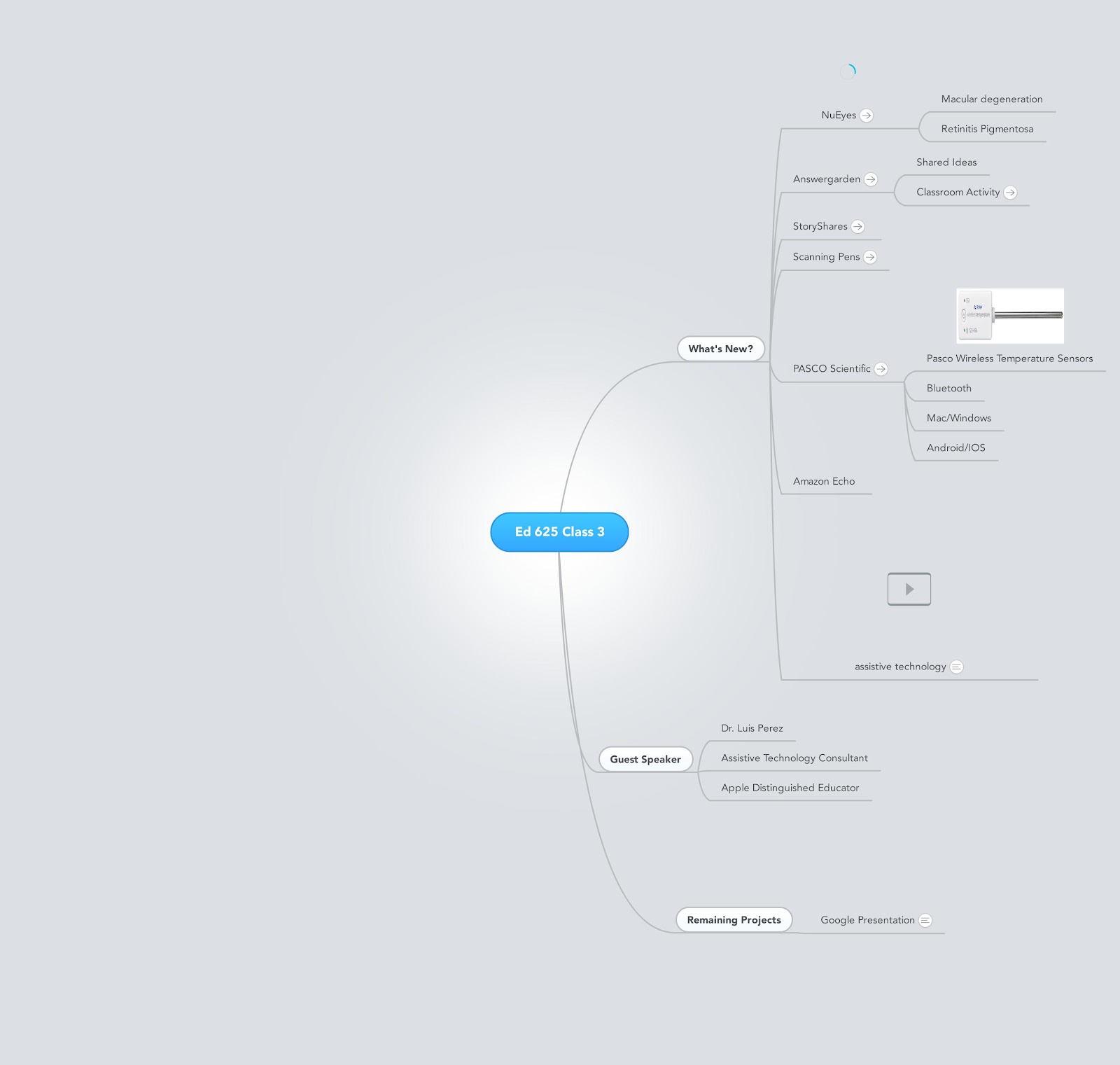
Ed_625_Class_3 (1).jpgMindMeister  is web based any changes I make to the mind map are automatically updated which makes it an ideal learning tool. When I am in class I simply open the MindMeister  map and go through my lecture with all my resources attached to the map.

In addition to linking websites, I often take advantage of MindMeister’s capability of accessing YouTube videos which I can embed right within the map. Being able to search for YouTube videos right within MindMeister is another time saving feature when designing my lectures.
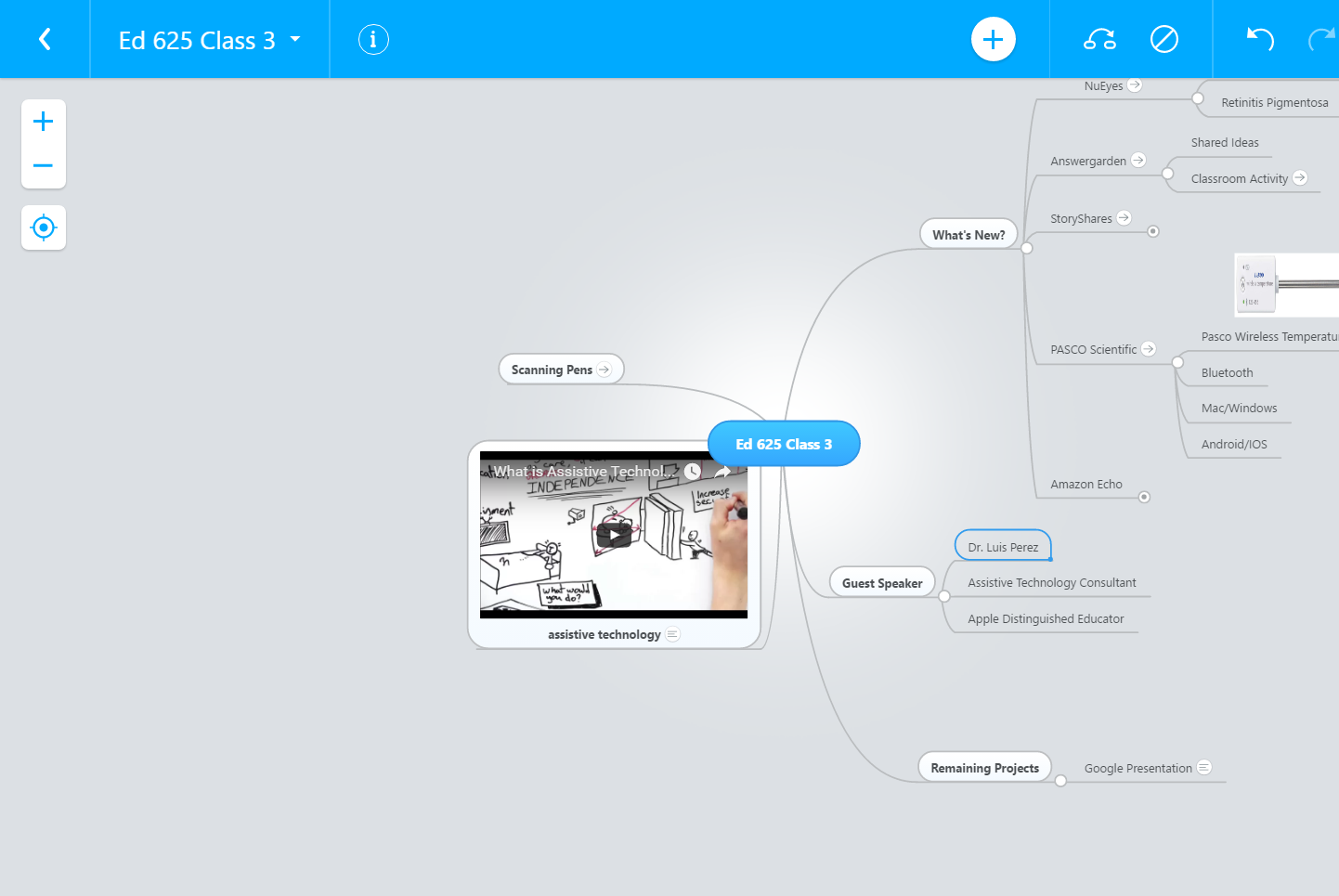
Of course if it only had these aforementioned features that would be enough to get through my classes, but with the ability to attach documents and have student comment on the material it makes MindMeister and indispensable learning tool in my classroom. One of the big advantages of using MindMeister in this way, is that from year to year, I can tweak the lecture maps and quickly update them with new websites and resources and I am up and running for the next semester. If you are teaching and have to organize your lectures for students then you should really take a look at how MindMeister can help solve your problems of delivering content and resources.

If you liked this article, you might also be interested in:

Read More »

Sunday, March 26, 2017

New Infographic Guides Available With Focus on Educational & Assistive Technologies

For the past 6 months I have been using the WACOM Bamboo Slate and iPad to create info-graphics for many of the assistive technologies that I have been using with students. What started out as a just a way for me to explore some new gadgets quickly became an enjoyable activity for me at the end of a busy day. In the evenings, to relax, I will take out my Bamboo Slate and using a mechanical pencil begin to draw a screen shot or gadget and then ink it with the Bamboo pen. Once the drawing is inked, I send it to my iPad and begin to color it using the Bamboo Paper app.


I have to tell you that I find it very relaxing creating these info-graphics and there is something engaging about drawing the images. I have received a great deal of positive feedback and some educators have approached me about wanting to purchase them for classroom use. I am in the process of putting together a list of the info-graphics that I have created and will be offering them laminated for easy reference and use. The info-graphics cover a wide array of apps and hardware and are a easy to use quick reference which would be ideal for classroom teachers or students taking courses in educational technology and special education. I am working on the pricing but am trying to keep the costs down so that I can this information into the hands of teachers, students, and parents. I should be able to create the info-graphic guides so that there are 2 guides in a heavy lamination for ease of use. The info-graphic guides can be three holed punched so that you can keep them in a binder. The laminated guide which would consist of two different but related info-graphic guides are $10 dollar each. Single page info-graphic guides would run $5.00. Volume pricing is available.

Here is a partial list of some of the guides that are now available.

Getting Started with Voice Typing
Using Voice Commands with Voice Typing
Using Popplet 
Using the C-Pen Scanning Reader Pen
Using Word Online with Immersive Reading
Using WordQ for Chrome
Using ThoughtQ for Chrome
Getting Started with Co:Writer Universal for Chrome
Using Flipgrid in the Classroom
Using Sonocent Audio Notetaker
Getting Started with Snap & Read for Chrome
Tips on using Read & Write for Chrome
Getting Started with ClickerDocs for Chrome
Using the Amazon Echo in the Classroom
Using Livescribe Smartpens in the Classroom

Please feel free to contact me if you have any questions or want to customize a solution.


Read More »

Saturday, March 18, 2017

The C-Pen Reader Packs A Lot of Features in a Small Package

When I came across the C-Pen Reader at the FETC conference this past year, I knew that I had to request a review unit to test it out. After contacting the company, they approved my request and
C-Pen Reader
provided me a C-Pen Reader for the review. The opinions reflected in this blog are my own. I have been in the field of assistive technology for over 25 years and over these years have looked at a number of portable hand held reading solutions that promised to make the reading process easy and quick from scanning to reading text. 

The first time you pick up the C-Pen Reader you will be amazed by it size and weight (1.7 oz.) and a bright OLED 256 x 64 display. The C-Pen Reader packs a lot of technology into a rather small package making it easy to pack in your backpack or brief case. The C-Pen Reader comes with a Quick Start Guide which gets you up and running quickly. In the box you will find the C-Pen, a USB to Micro USB cable (for charging and transfring files), ear buds, and a protective carrying case. The C-Pen Reader was already charged right out of the box and so I jumped in and turned it on. Pressing the Power button started up the C-Pen Reader and now I was ready to scan some text. Gliding the C-Pen Reader across a line of text, you will begin to experience just how fast the text is scanned into the device. Within seconds the line of text was being read with highlighting by the C-Pen Reader using a high quality American English text to speech engine. Using the navigation buttons-students could go back and have the text re-read as they see fit. There are lots of ways to customize the reading experience by jumping into the Menu system to control the speed (Slow, Medium, & Fast) and volume. The C-Pen Reader has an 3.5 mm audio jack which enables students to plug in their ear buds so that they can use the C-Pen Reader in a classroom, discreetly. One
C-Pen Reader
of the problems that I often found using handheld scanning pens was that the scanning algorithms and the optical character recognition engines were rather poor which often resulted in devices speaking gibberish. This was not the case with the 
C-Pen Reader-the scanning was fast and accurate making it a pleasant reading experience. As long as you have a steady hand you will find the accuracy to be excellent. The C-Pen Reader can be set up for Right or Left handed scanning making it easier to customize the scanning direction resulting in a better experience. The C-Pen Reader also has a built-in dictionary (Collins 10th Edition) support allowing students to scan and look up words they are unfamiliar with. 

The C-Pen Reader has a number of other features that allow students to use the device as a voice recorder for creating voice notes in a MP3 file format that can be listened to and managed on the scanning pen. The C-Pen Reader comes with 1 GB of storage so there is plenty of room to store audio and voice notes. This feature can come in handy for students who need to record their ideas or lectures and then transfer them to their computer. When the C-Pen Reader is plugged into a Mac or PC it mounts as a drive, making it easy to transfer audio and text files. 

Students may also find using the C-Pen Reader useful as a means to scan text from articles and books directly into a word processor. By plugging the C-Pen Reader into a computer, you can put it into a keyboard mode which inputs any text you scan directly to the application that is open. Students will find this a great feature when they need to do research or to place the text into a word processor with Text-To-Speech capabilities. Teachers can also use this feature to pre-scan text into a File on the C-Pen Reader device that the student can open when they need access to the text in the classroom.

The C-Pen Reader packs a lot of features into a small package that students will find easy to navigate. For students that have been diagnosed with dyslexia or a reading disability the C-Pen Reader offers a great portable reading solution. The C-Pen Reader offers students a way to access text in a small discreet package that can be easily used in the classroom. I would see this an ideal solution for students who need to access tests, worksheets, and short reading passages. The C-Pen Reader gives students the opportunity to access text independently in the classroom with a light and powerful tool. In future releases I would like to be able to change the size of the font that is displayed on the C-Pen Reader and for classroom use it wold be great if teachers could manage a set of these devices that would enable them to easily pre-load text into a classrooms set of C-Pen Readers. For more information about the C-Pen Reader click here. 


Read More »